

Creating new projects
Creating projects
Click "Create new project" below the welcome screen's project selector. This'll bring up the project creation assistant.
The neccessary information for creating a new articy:draft project are divided into 1 to 2 pages.
They are
- General information
- Source control MULTI-USER
General information SINGLE-USER MULTI-USER

In Multi-User click "General Information" in the navigation bar on the left of the project creation assistant to get to the "General Information" page. For Single-User General project information is the only tab.
Project name

This is the name of your project as it will be displayed in the project selector on the welcome screen.
Detail name

If you want to add some kind of remark or explantion text (e.g. "internal test", "GDC demo", "release") you can add a subtitle to further describe the project. The detail name will also be shown in the project selector.

Cover image

This will be your project's avatar image, used in the project selector.
Project name, detail name as well as the cover image can be also changed at a later point of time, so you don't have to bother too much when just creating your new project.
Project Language
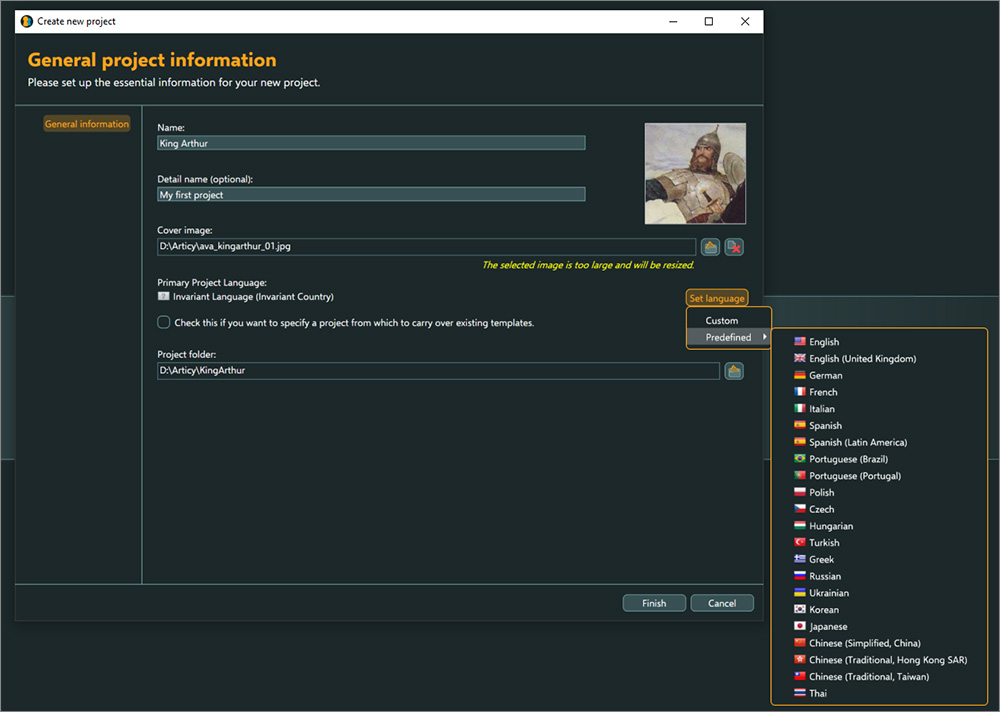
Here you can set the primary language for your project. The primary language is your main content creation langugae. You can select from a pre-defined list or create a custom language, if your desired language is not on the pre-defined list, by entering the language's ISO 639-1 code.
Languages can also be set or edited later via the project settings.
Use templates from an existing project

Selecting this check marks allows for using templates from another project for this new project. Choose the project folder of the desired existing project. When creating the new project all features, templates, and property definitions will be copied over.
If any objects were used as default values, for example for slot properties, these objects will not carry over and will be replaced by broken references. These broken references can be located easily with the conflict search, so you can see where you might need to add new default objects.
This feature is available for both SINGLE-USER and MULTI-USER.
Project folder

articy:draft will store all data related to your project in this folder. If you import images, documents or other files, they will also be copied there.
It is possible to move the location of your project's working copy even after the project has been created. Read here for more details.
Source control MULTI-USER
See here to learn how to connect with Subversion or Perforce for versioning.Editing the main project partition
When creating a new project the new project assistant allows to input general project data like name and cover image. But this data can also be changed in the later course of the project. Just open the project exclusively and right-click the main project entry in the navigator. This opens the context menu. Choosing Open properties shows the general project data.

In this property view you are able to change
- Project name
- Detail name
- Cover image
Once you have change the data according to your needs, you need to "Apply" or "Reset" those changes by clicking on the according button.
Finally, close the project to distribute the new project data to all other team members and to make the project available for collaboration again.